Ballista Command-line Interface#
The Ballista CLI allows SQL queries to be executed against a Ballista cluster, or in standalone mode in a single process.
Use Cargo to install:
cargo install ballista-cli
Usage#
Command Line Client for Ballista distributed query engine.

Usage: ballista-cli [OPTIONS]

Options:
  -p, --data-path <DATA_PATH>    Path to your data, default to current directory
  -c, --batch-size <BATCH_SIZE>  The batch size of each query, or use Ballista default
      --vcores <VCORES>          Virtual cores for the local Ballista executor. Default: all available physical cores.
  -f, --file [<FILE>...]         Execute commands from file(s), then exit
  -r, --rc [<RC>...]             Run the provided files on startup instead of ~/.ballistarc
      --format <FORMAT>          [default: table] [possible values: csv, tsv, table, json, nd-json, automatic]
      --host <HOST>              Ballista scheduler host
      --port <PORT>              Ballista scheduler port
  -q, --quiet                    Reduce printing other than the results and work quietly
      --color                    Enables console syntax highlighting
      --tui                      Enables terminal user interface
  -h, --help                     Print help
  -V, --version                  Print version
Example#
Create a CSV file to query.
$ echo "1,2" > data.csv
Run Ballista CLI in Distributed Mode#
The CLI can connect to a Ballista scheduler for query execution.
ballista-cli --host localhost --port 50050
Run Ballista CLI in Standalone Mode#
It is also possible to run the CLI in standalone mode, where it will create a scheduler and executor in-process.
$ ballista-cli

Ballista CLI v54.0.0

> CREATE EXTERNAL TABLE foo (a INT, b INT) STORED AS CSV LOCATION 'data.csv';
0 rows in set. Query took 0.001 seconds.

> SELECT * FROM foo;
+---+---+
| a | b |
+---+---+
| 1 | 2 |
+---+---+
1 row in set. Query took 0.017 seconds.
Cli commands#
Available commands inside Ballista CLI are:
Quit
> \q
Help
> \?
ListTables
> \d
DescribeTable
> \d table_name
QuietMode
> \quiet [true|false]
list function
> \h
Search and describe function
> \h function_table
Set table output format
> \pset format json
Open the terminal user interface
> \tui
Terminal User Interface (TUI)#
When Ballista CLI is built with the tui feature, you can launch an interactive terminal user interface
that provides a visual overview of the Ballista cluster.
Launching the TUI#
There are two ways to start the TUI:
Directly via command-line flag:
ballista-cli --tui
From within the Ballista CLI interactive shell:
ballista-cli
> \tui
TUI Features#
The TUI provides the following views:
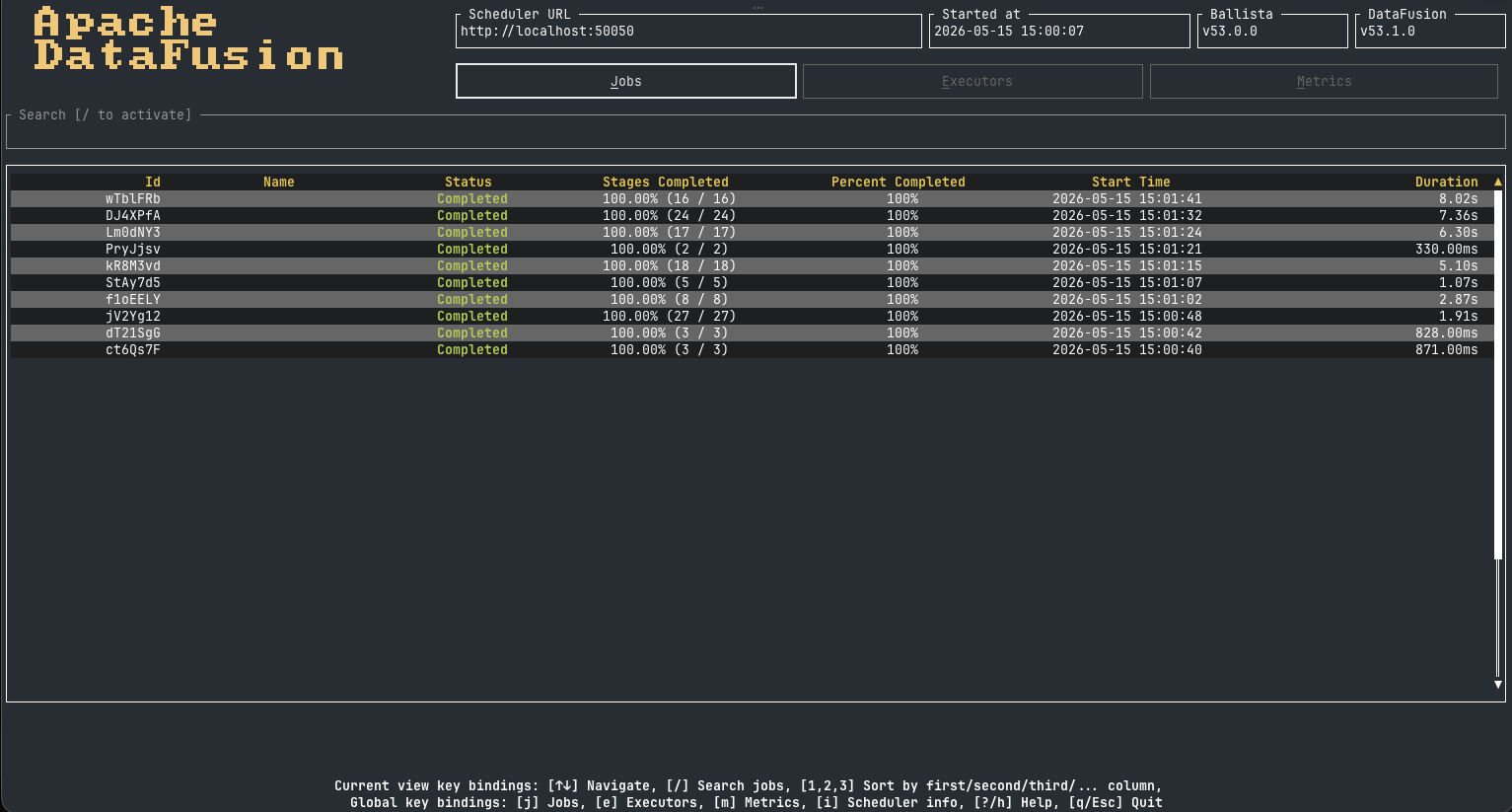
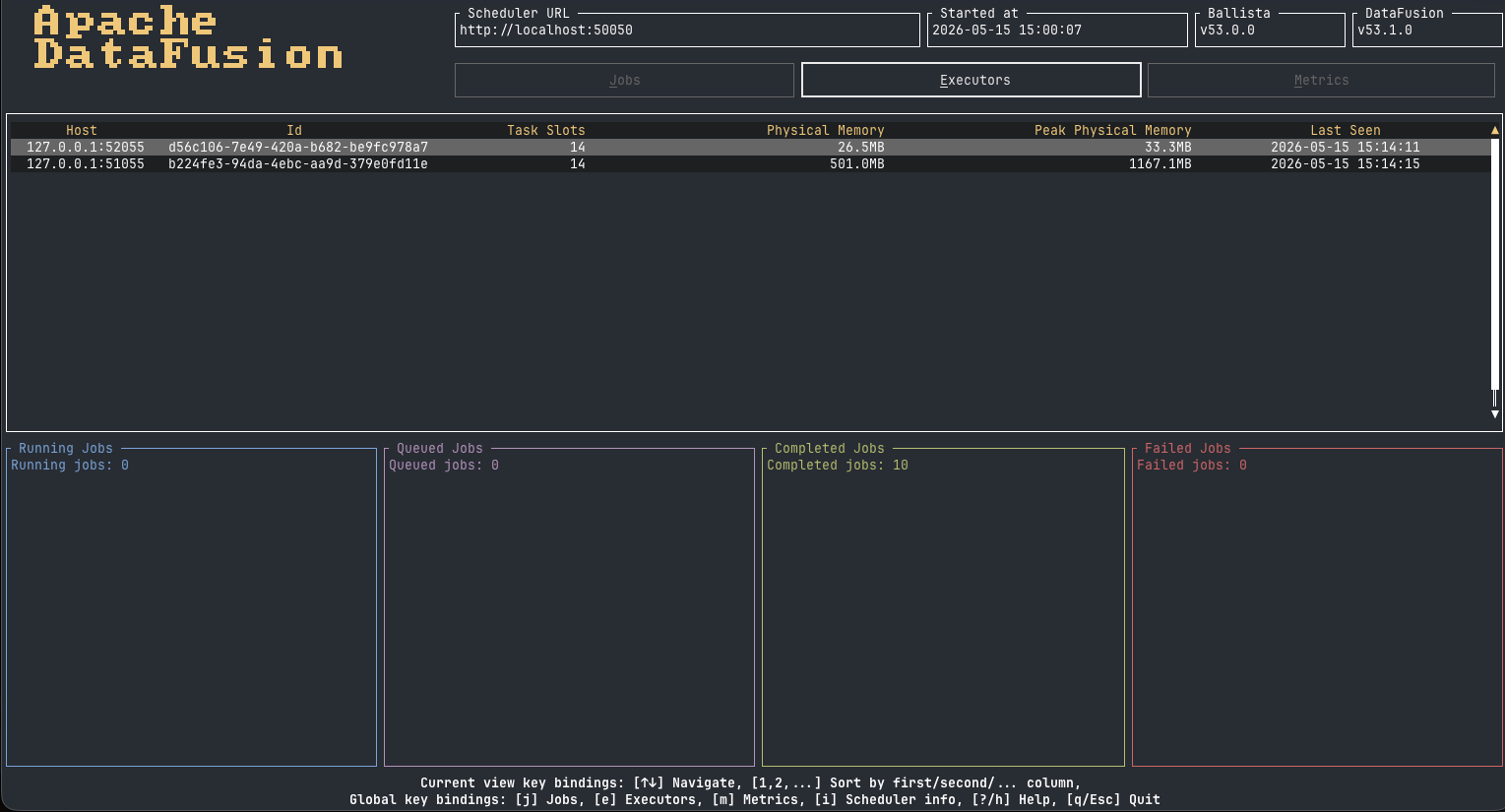
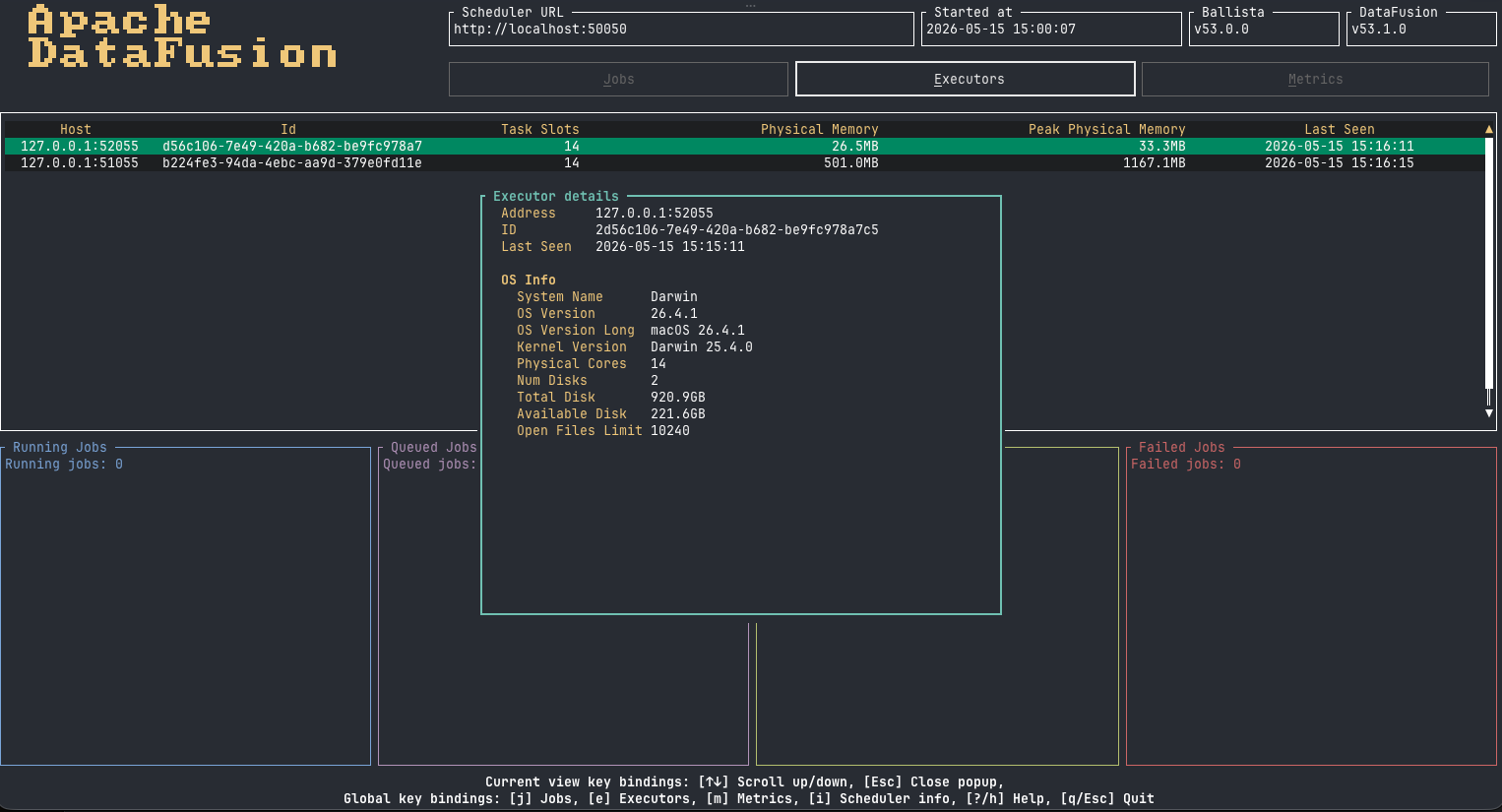
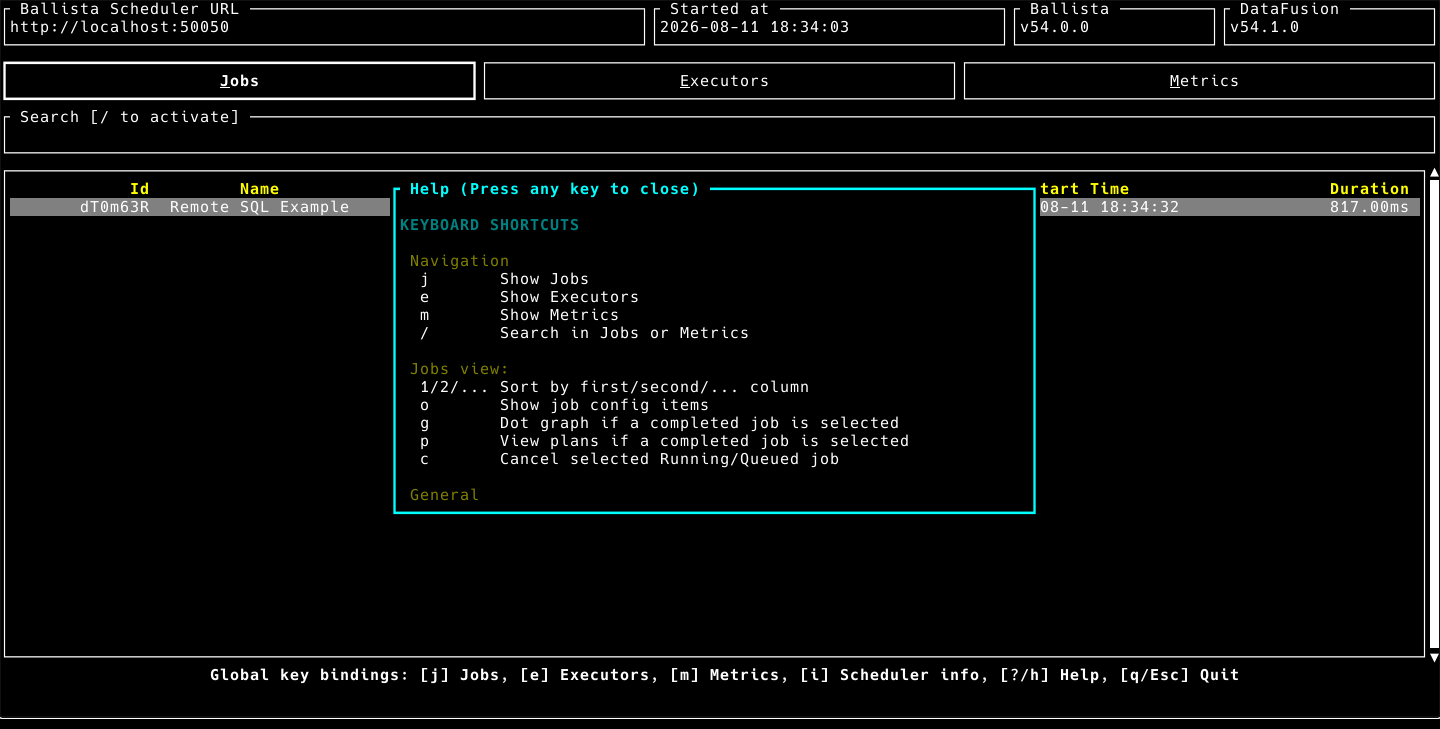
Executors: Lists all registered executors with their host, port, vcores, memory usage, and last seen time. Supports sorting by any column.
Executor details: Select an executor and press
Enterto show extra details about it.Jobs: Displays active and completed jobs with their status, start time, and duration. Supports sorting, job search (
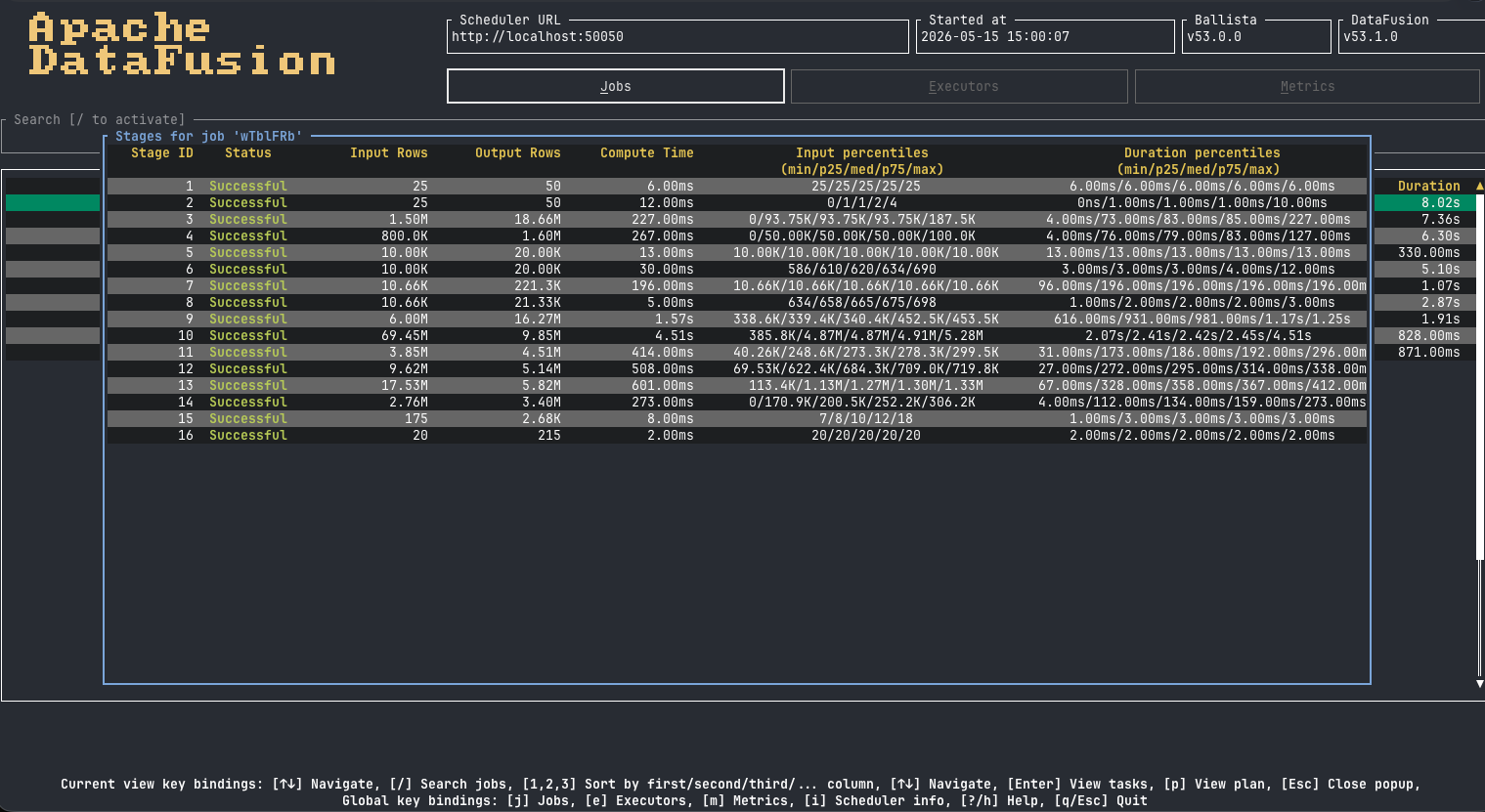
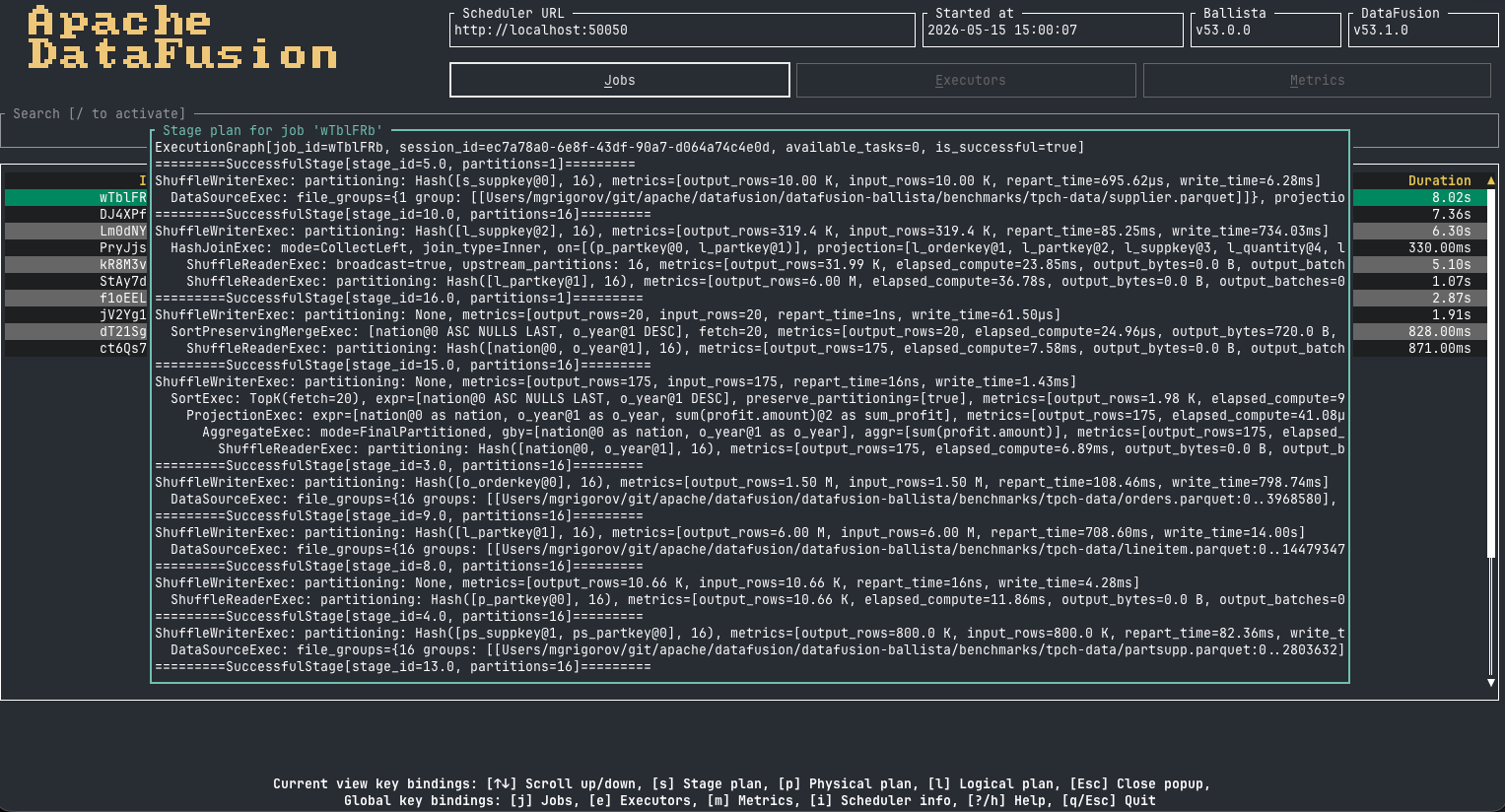
/), and shows job details on selection.Job Stages: When viewing a job, press
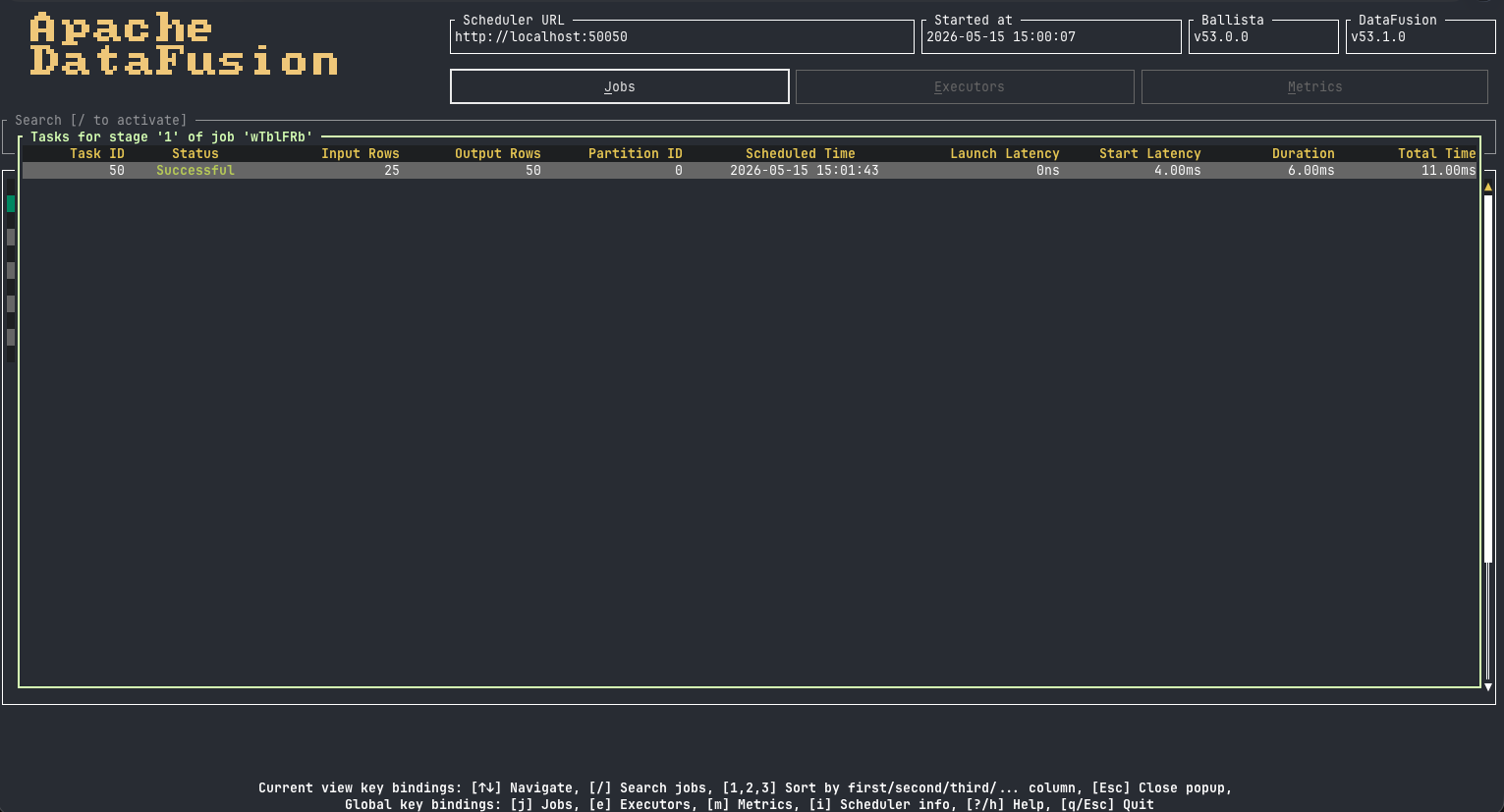
Enterto see its execution stages with input/output rows, elapsed compute, and task percentiles.Stage Tasks & Plan: Within the Job Stages view, press
Enterto see individual task details orpto view the stage execution plan.Job Plans: For completed jobs, press
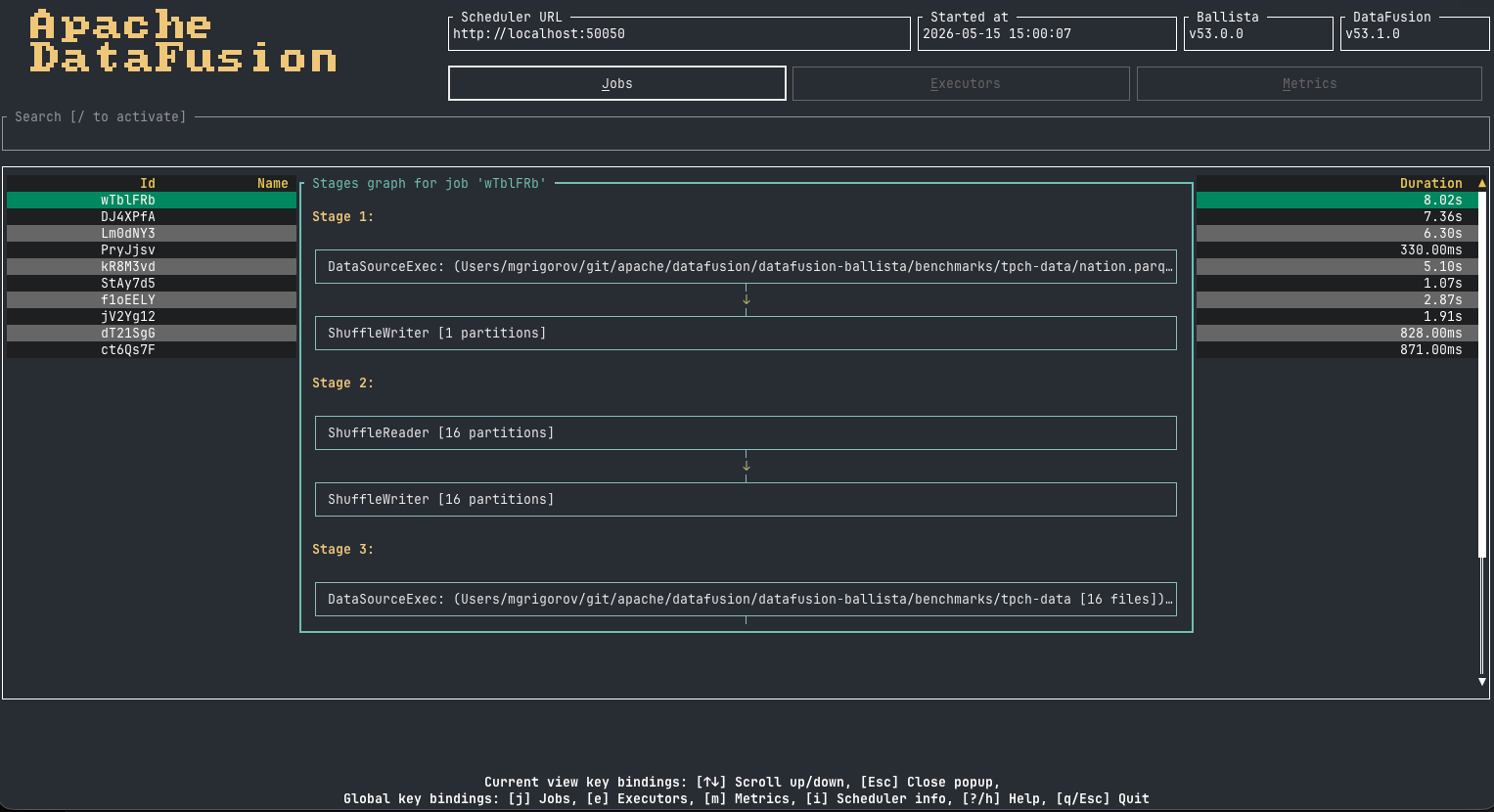
pto view the Stage, Physical, or Logical query plans.Job Stages Graph: Press
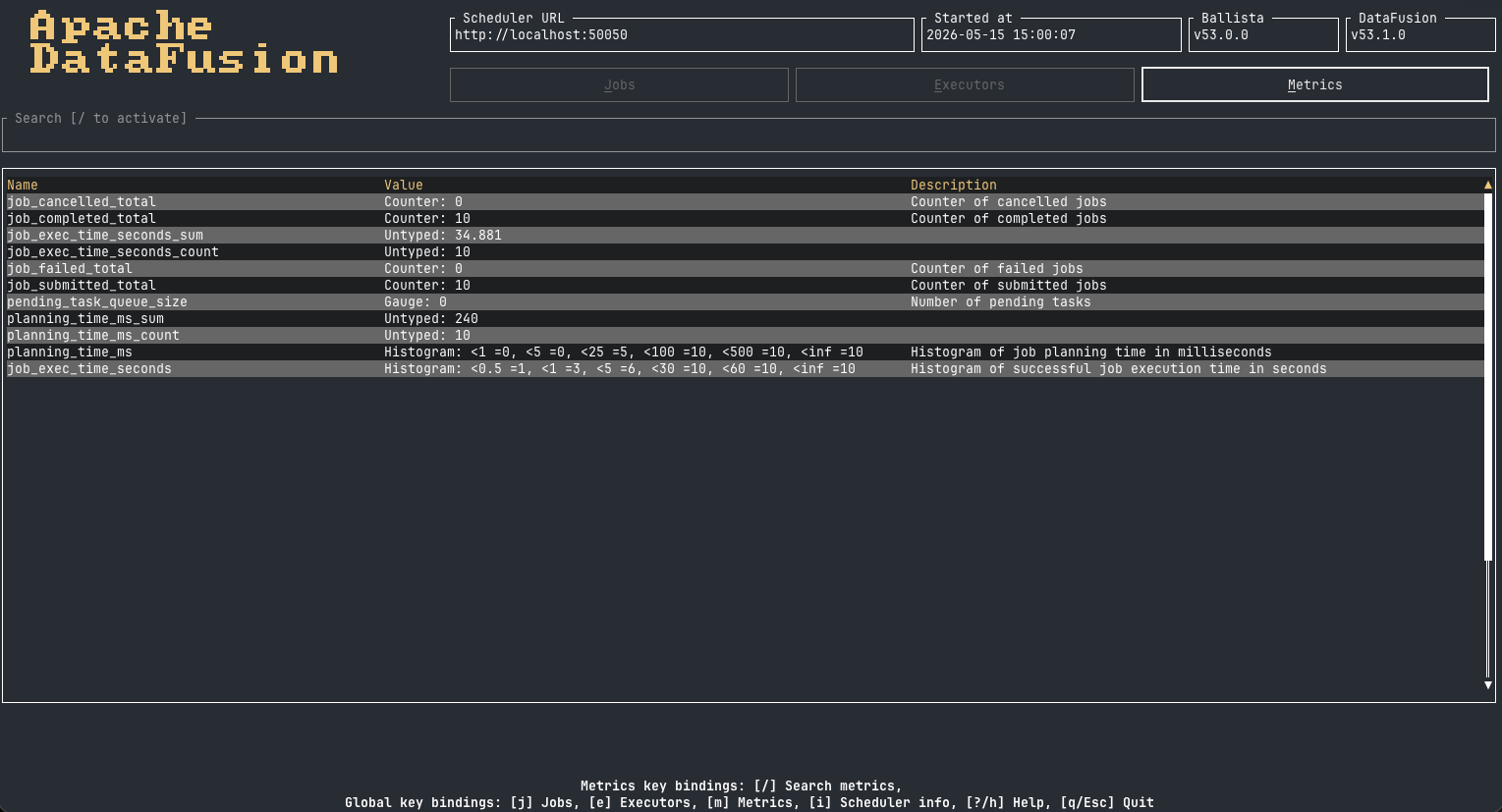
gto visualize the job’s stage execution graph.Metrics: Fetches and displays Prometheus metrics from the scheduler, including query execution statistics.
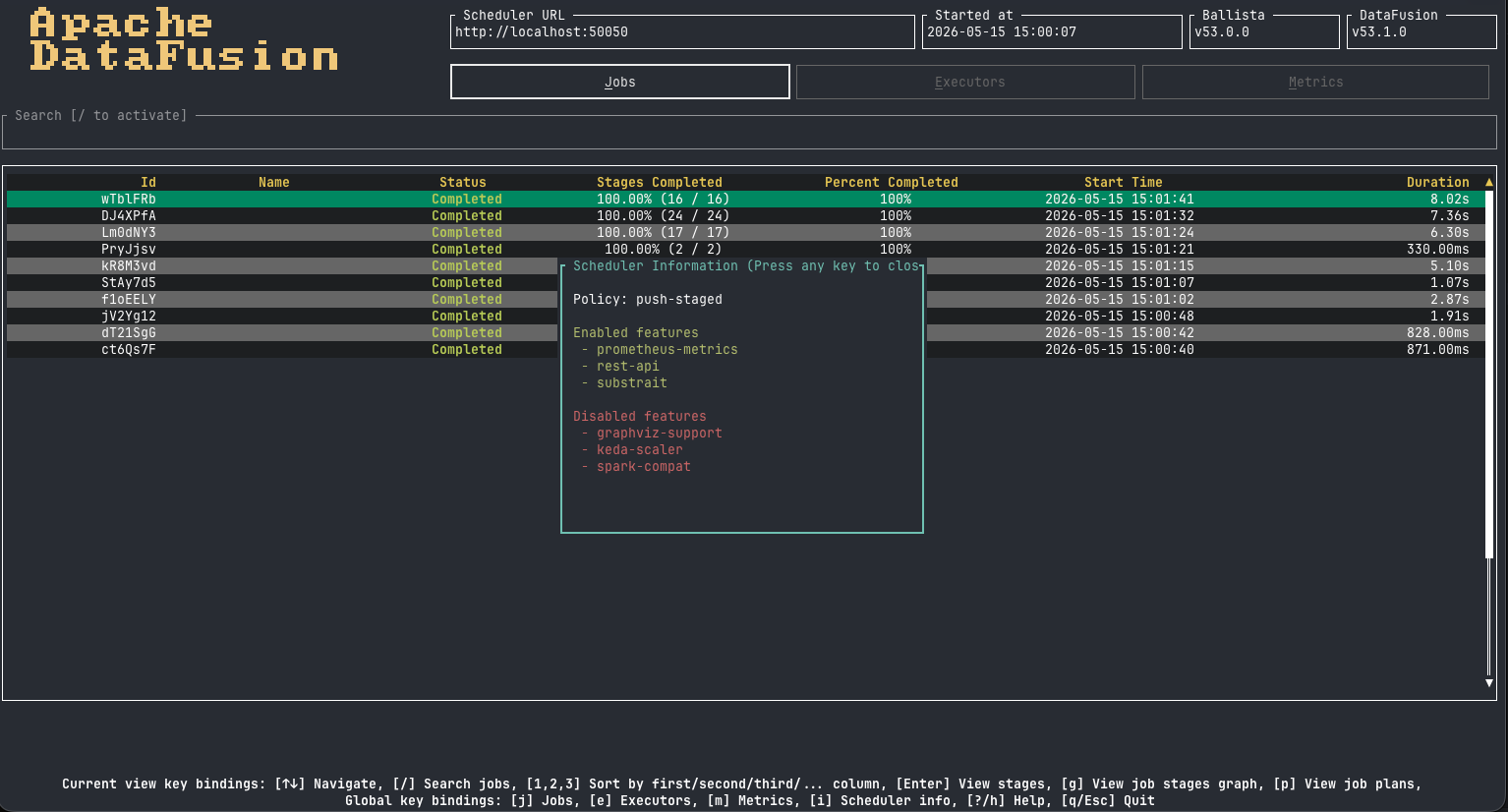
Scheduler Info: Shows the current scheduler state and configuration.
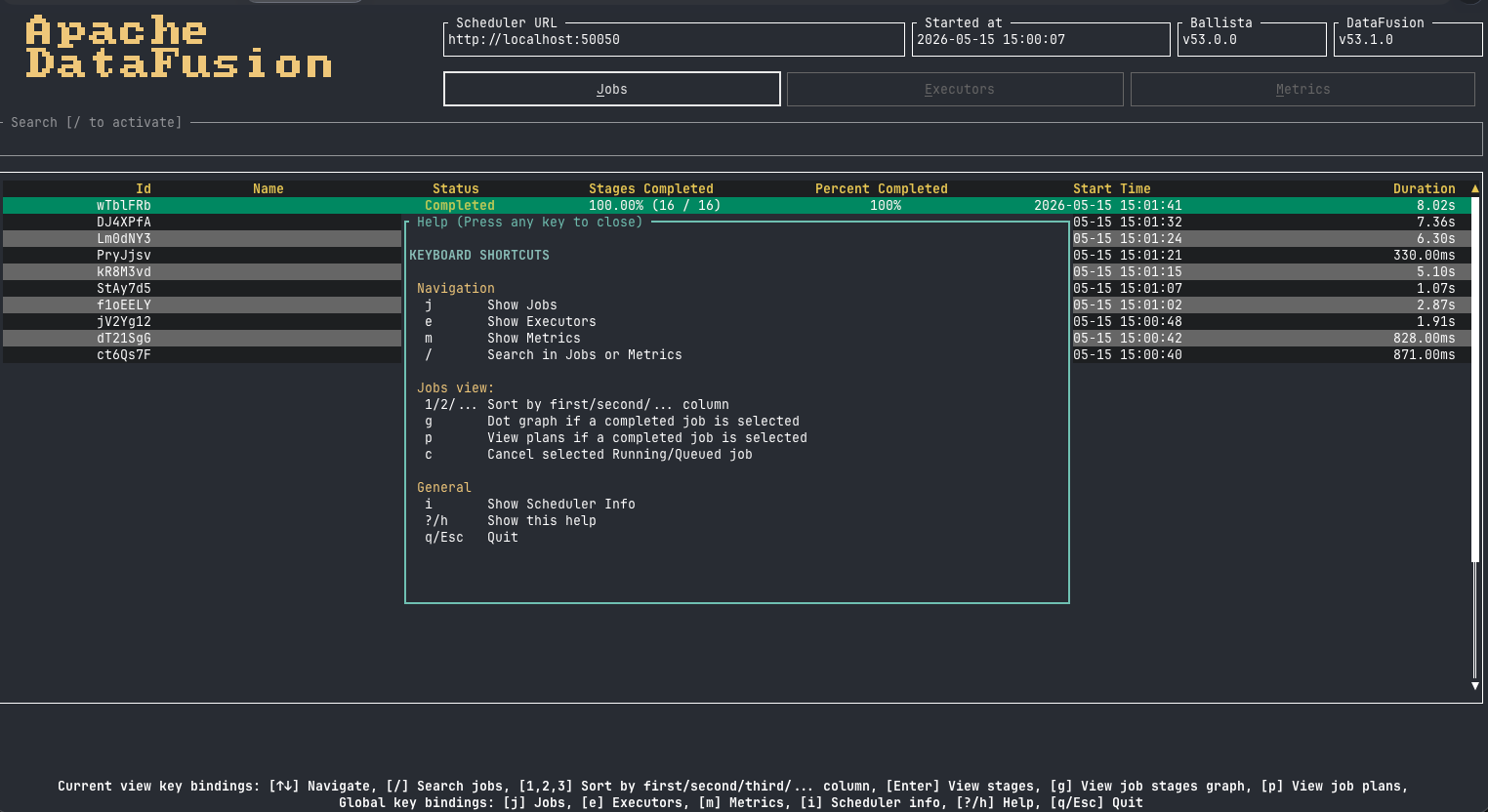
TUI Screenshots#
TUI Configuration#
The TUI reads its configuration from a YAML file located at the platform-specific config directory:
Platform |
Example Path |
|---|---|
Linux |
|
macOS |
|
Windows |
|
Create the file manually if it does not exist. The following settings are available:
data_reload_interval_ms: 2000
repaint_interval_ms: 50

scheduler:
  url: "http://localhost:50050"

http:
  timeout: 2000

theme:
  name: "dark"
  overrides:
    table_header:
      fg: "DarkBlue"
      bg: "White"
      add_modifier: "UNDERLINED|ITALIC"
    status_running:
      fg: "#ff00aa"
      bg: "108"
data_reload_interval_ms: How often the TUI refreshes data from the scheduler (milliseconds).repaint_interval_ms: How often the TUI repaints the screen (milliseconds).scheduler.url: The Ballista scheduler HTTP endpoint.http.timeout: HTTP request timeout in milliseconds.theme.name: The name of the base theme. Possible values:darkandlighttheme.overrides: An object that allows to override the style of the theme properties. The complete list of the properties could be found here. The supported values for colors are: 1) named ( e.g. “White”); 2) RGB (e.g. “#rrggbb”); 3) Indexed (e.g. “108”)
Environment variables prefixed with BALLISTA__ also override these values. For example:
BALLISTA__SCHEDULER__URL=http://localhost:50051 ballista-cli --tui
Double underscores (__) are used to denote nesting in the configuration structure. In the above example, BALLISTA__SCHEDULER__URL overrides the scheduler.url setting in the YAML configuration.
The TUI connects to the scheduler via HTTP and refreshes the data automatically every data_reload_interval_ms milliseconds.
Web Terminal User Interface (Web TUI)#
Ballista also provides a browser-based version of the TUI, compiled to WebAssembly, that allows cluster monitoring directly from a web browser.
Using the hosted Web TUI#
When the scheduler HTTP endpoint is available, open its root URL in a browser. For a scheduler using the default port:
http://localhost:50050
The scheduler redirects the browser to the hosted Web TUI and passes the scheduler URL so that the Web TUI can connect to it.
The Scheduler provides additional configuration options for the Web TUI redirect and CORS settings. See the Scheduler documentation for details.
Running the Web TUI locally#
For local development, install the WebAssembly target and Trunk, then start the application from the ballista-cli directory:
rustup target add wasm32-unknown-unknown
cargo install trunk
cd ballista-cli
trunk serve --no-default-features --features web
Then open http://localhost:8080 in a browser.
Web TUI Screenshots#
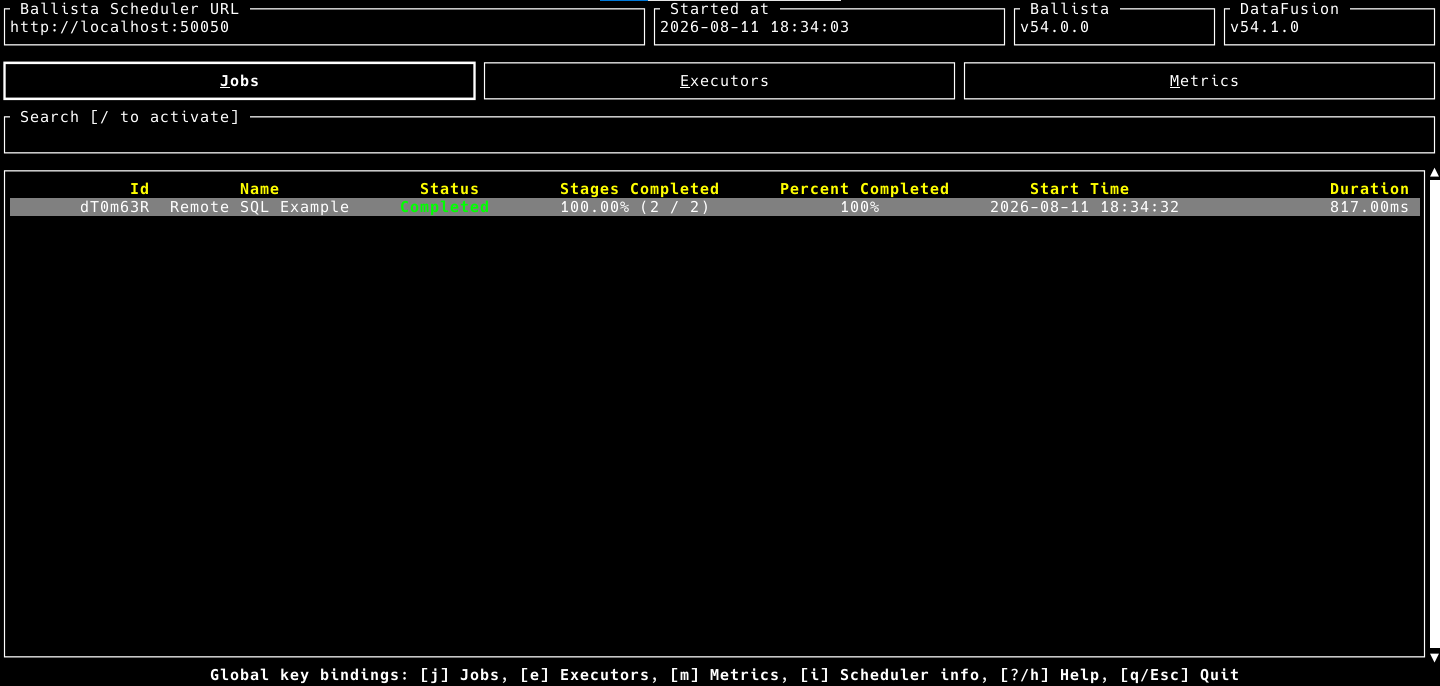
The following screenshots show the Web TUI running in a browser.
Main View#
Help#
Search#